Showing posts with label General Computing. Show all posts

Wednesday, 14 March 2018

Creating a 1 centimetre squared light grey grid on A4 paper using Inkscape

My wife wanted to draft out a crossword puzzle for her Rainbow Girl Guides unit. She needed a faint 1 centimetre squared grid to plan it out. She would use a pencil and plan the word positions. Finally, tracing over the words with a pen and drawing in required squares.

Inkscape is a free and open-source vector graphics editor, available for Linux, Windows and Mac OS X; it can be used to create or edit vector graphics such as illustrations, diagrams, line arts, charts, logos and complex paintings.

Inkscape has a Grid extension but, it requires that you enter some values in pixels.

So, in my case because I wanted 1 centimetre squares I

<SHIFT> + <CTRL> + <D>

which is the shortcuts keys for

File → Document Properties

I selected A4 and then selected in the 'Units' drop-down 'cm'. I noted down that, an A4 piece of paper was 21 cms width, by 29.7 cms height. I then changed the 'Units' drop-down to 'px' for pixels. This gave me 744.09 pixels width. I then divided 744.09 by 21. Rounding down...

35.43 pixels = 1 centimetres

Noting this down I then went and created the grid.

Extensions (Extras) → Render → Grid

I left the 'Line Width' at 1 pixel. I changed both the 'Horizontal' and 'Vertical' spacings to 35.4 pixels. Clicking on the 'Apply' button results in a visible and printable page with a 1 cms squared grid upon. However, this was in the default Stroke colour, black. I wanted to lighten this so that, it was just a faint background grid layout, for my wife to use. So, I wanted to change it to light grey colour lines.

Having highlighted the grid

<CTRL> + <A>

which is the shortcuts keys for

Edit → Select All

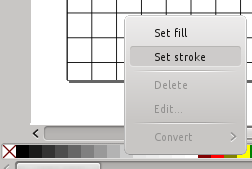
I then right mouse clicked on the '20% grey' colour from the colour pallete which was at the bottom of the editor pane. Offcourse, if I wanted this to be like a school math pages, I could have selected a light blue colour.

Done!

If you do not want to go through all of the above then, you can download my SVG file here,
A4_1cm_square_grid_paper.svg

Monday, 24 December 2012

Using the Draytek Vigor 2800V after Fibre Broadband (FTTC / VDSL)


The Draytek Vigor 2800V is a ADSL 2 / 2+ (Broadband) Router / Firewall with VPN / VoIP Server capabilities.  Currently you can get these second-hand for about £30-£40.  The Vigor 2800VG also has 802.11g wireless and are about £45-£55 second-hand.

So, you now have Fibre Broadband (FTTC/VDSL) and your old Draytek Vigor 2800V is just a Door stop. Well, at least it can be an expensive Printer Server right? You still want to use it for VoIP (Voice over IP)? Well, you cannot. Not as it stands anyway. Good old Draytek forced the default (World Wide) traffic to go out of the WAN (ADSL) port and no amount of messing about with routing in the Web Configuration Interface is going to solve that.

I found the solution!...

Here are the steps I took to get it working for VoIP. Offcourse, once you have forced a default route into the 2800V, it'll be useful for VPN, etc. again too. I am assuming that you were supplied with a new Router when you got Fibre Broadband.

  1. Make a note of your new Router's IP address. You need this to tell the Vigor 2800V where to route default (World Wide) traffic.

  2. If your old Vigor 2800V still has its old configuration, then you will need to reset it back to Factory Settings. Doing this will ensure that the following steps work and are not circumvented by some custom settings you may have. You can do this by inserting a Pencil into the small hole marked, 'Factory Reset', holding it for about 10 seconds, until, the ACT LED (Light) flashes erratically. Remove the Pencil and the Router will reboot, back to its original set up.

  3. Login into the Vigor 2800V Web Configuration Interface at 192.168.1.1 (Factory set IP address).

  4. Go into the Internet Access > PPPoE / PPPoA window. Disable the PPPoE / PPPoA Client. Click 'OK' and this will reboot your Vigor 2800V.

  5. Having logged back in, goto LAN > General Setup. Under For NAT Usage, set the 1st IP address. This will be the new IP address of the Vigor 2800V on your LAN. Remeber NOT to set it to the same IP address as any other device on your LAN, especially that used by your new Router.

  6. Disable IP Routing Usage. Disable DHCP Server. Assuming that you are using your new Router for DHCP and do NOT want a conflict.

  7. Now, add the IP address/es for the DNS Servers. Your ISP should have provide these. If not, do a Internet search for your ISP and DNS to find these. Otherwise, just enter the IP address of your new Router and hopefully it will resolve DNS fine for you.

  8. Click 'OK' and the Vigor 2800V will reboot itself.

  9. Log back in and at this point you could add your SIP account to VoIP > SIP Accounts but, it still will not work! One more step to fix this.

  10. You now need to Telnet into the Vigor 2800V CLI (Command Line Interface). You can do this in M$ Windows by bringing up a Cmd window or, in a Linux BASH or, my preference, using the PuTTY client application. Telnet your Vigor 2800V's IP address, port 23. If you have not yet set a password, just hit <ENTER>.

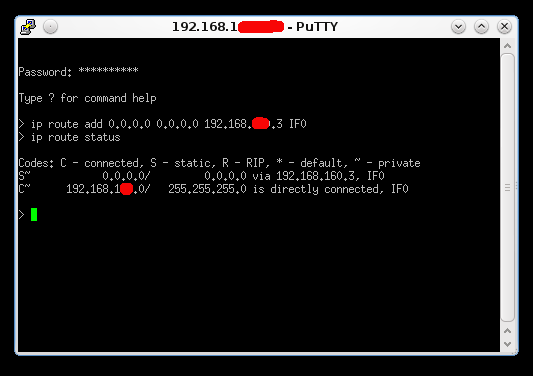
  11. Now type the following, ensuring that you put your new Router's IP address where indicated:-

    Code:
    ip route add 0.0.0.0 0.0.0.0 <New Router's IP address> IF0

    then press <ENTER>.

    Breaking this down, you are setting a default route of 0.0.0.0 with netmask of 0.0.0.0 via your new Router's IP address on the Vigor 2800V's LAN port (IF0).


    In my above example, .3 is my new Router that is connected to the BT FTTC VDSL NTE device.

  12. IF you have not done so in Step 9, set up your VoIP > SIP Accounts and you should now have VoIP again!

You can now also use the VPN Server too but, you will have to either open the required ports on your new Router or, set up as DMZ (demilitarized zone) Host on the new Router.

This solution works for my Vigor 2800V running 2.8.2 firmware.  My New Router is the Technicolor TG582n FTTC.


Thursday, 29 November 2012

TIP: How do I type the copyright symbol ©?

Mac

Simply enter Option + G.


M$ Windows

Whilst Num Lock is on, hold down the ALT key, keep depressed and type on the Numeric keypad '0169'.

Linux

This works on (k)ubuntu at least, using a UK keyboard.

AltGr + Shift + C keys.


Addendum

The above Linux solution did not work in GIMP for me when I was trying to create a Watermark for my photos.  The solution was to do the above in something like Kate (text editor), highlight and copy it to the Clip board and then paste it into GIMP's text editor window.


Tuesday, 14 June 2011

Copy PuTTY sessions to another computer

Copy PuTTY sessions (conn. profiles) to another computer

 
1. From Run or a command prompt, paste and execute the following:

Code:
regedit /e "%userprofile%\desktop\putty-registry.reg" HKEY_CURRENT_USER\Software\Simontatham


Simon Tatham is the author of PuTTY and thus the registry entry above! Bet you were worried that the above script ran something to mess with your Registry!?

2. This produces a file, putty-registry.reg on your desktop. Copy on to the computer you want the saved sessions added to and double click on it to execute. This adds the PuTTY registry to the computer's registry.

Done!

Thanks to Anton Perez for this. I copied here in case his page ever disappears and it helps my ageing grey-cells!

Monday, 30 May 2011

Useful radio stream list URLs

Here are some useful sites listing radio streams.

A mixture of feeds to successfully play radio through Linux or M$ Windows.

I typically use the .m3u or .ogg streams on Amarok 1.4 on Kubuntu. There is .asx streams for Windows Media Player and .m3u streams for Winamp.

UK:
http://www.listenlive.eu/uk.html
http://media-ice.musicradio.com/

EU:
http://www.listenlive.eu/


 Here is a list of radio streams that I currently have on my Amarok 1.4

Absolute 80s
http://network.absoluteradio.co.uk/core/audio/mp3/live.pls?service=a8bb

Absolute 90s
http://network.absoluteradio.co.uk/core/audio/mp3/live.pls?service=a9bb

Absolute Classic Rock
MP3 - http://network.absoluteradio.co.uk/core/audio/mp3/live.pls?service=vcbb
OGG - http://network.absoluteradio.co.uk/core/audio/ogg/live.pls?service=vcbb

Absolute Radio
MP3 - http://network.absoluteradio.co.uk/core/audio/mp3/live.pls?service=vrbb
OGG - http://network.absoluteradio.co.uk/core/audio/ogg/live.pls?service=vrbb

BBC Radio 1
http://www.bbc.co.uk/radio/listen/live/r1.asx

BBC Radio 2
http://www.bbc.co.uk/radio/listen/live/r2.asx

BBC Radio 3
http://www.bbc.co.uk/radio/listen/live/r3.asx

BBC Radio 4
http://www.bbc.co.uk/radio/listen/live/r4.asx

BBC Radio 6
http://www.bbc.co.uk/radio/listen/live/r6.asx

Capital 95.8
http://media-ice.musicradio.com/Capital.m3u

Heart Milton Keynes
http://media-ice.musicradio.com/HeartMiltonKeynesV1.m3u